

Katrangan
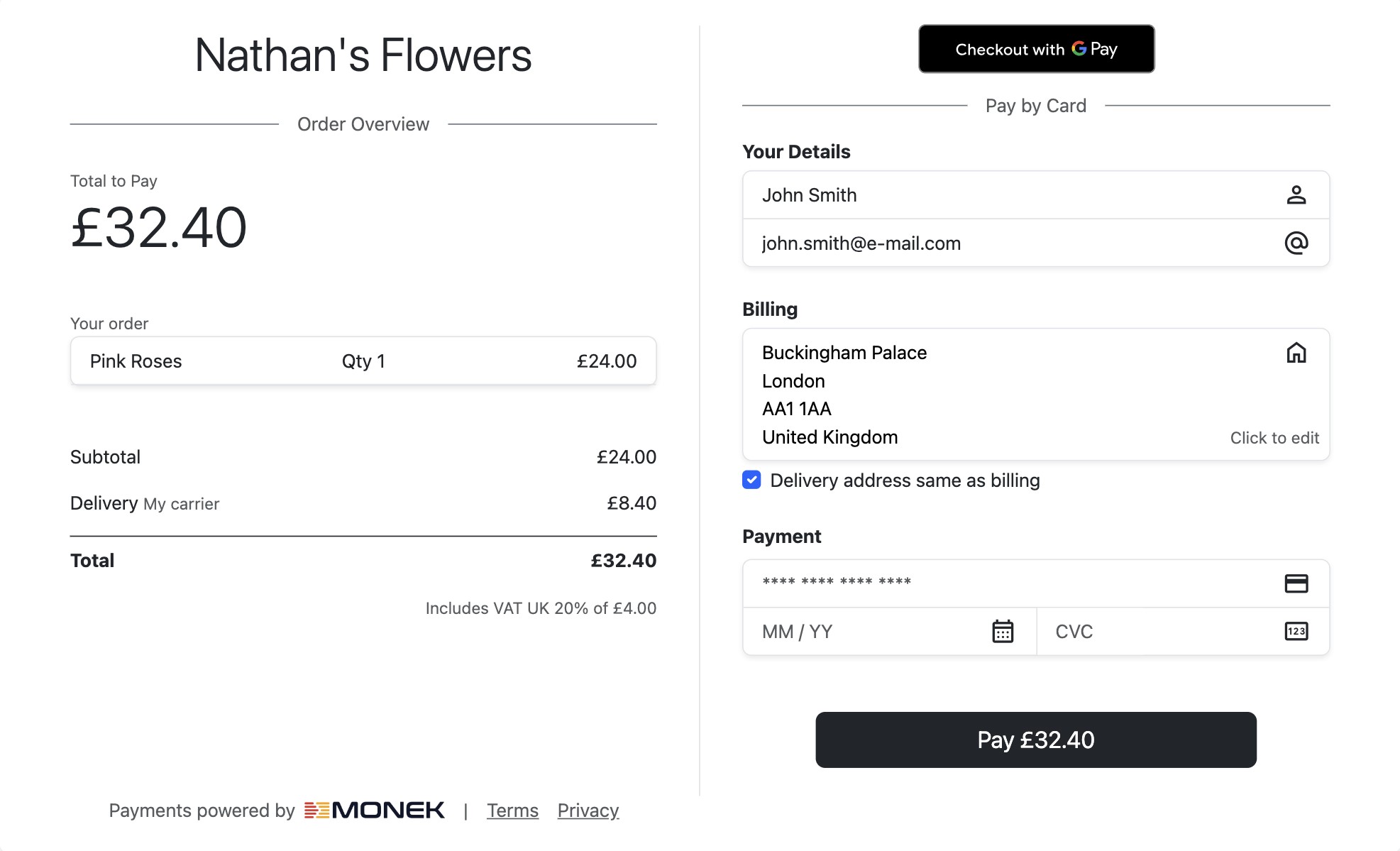
The plugin mounts Monek’s hosted payment fields and optional express wallets directly inside the WooCommerce Checkout Blocks experience. Customers stay on your site while their card details are captured securely. Merchants benefit from a guided setup that walks them through collecting API keys, enabling Apple Pay, and optionally confirming payments via webhook.
Key features:
* Secure embedded payment fields rendered inside WooCommerce Checkout Blocks.
* Optional Apple Pay and other express wallets when configured in Monek Merchant Portal (Odin).
* Payment Confirmed order status triggered by verified webhooks for added assurance.
* Simple configuration steps designed for non-technical store owners.
Configuration
1. Gather your API credentials from Monek Merchant Portal (Odin)
- Sign in to the Monek Merchant Portal and navigate to Settings -> Integrations page.
- Under the WooCommerce Integration tab, create a new integration. Provide a display name and your domain (e.g.
example.com). The domain name is required for Express Checkout and can be disabled later from the WooCommerce plugin settings if needed. - As a final step, copy the access (public) key, secret key and webhook url key before closing the pop-up window.
2. Add the credentials in WooCommerce
- In WordPress, go to WooCommerce Settings Payments and select Monek.
- Enter the access key, secret key and webhook url key values.
- Save your changes.
3. (Optional) Use Apple Pay
- Your website domain is listed against the access key you created in Monek Merchant Portal.
- You can disable Apple Pay at any time by unticking Express Checkout from the plugin settings.
- Test checkout from a supported Apple device or browser. The Apple Pay button will appear automatically once Apple confirms the domain.
4. (Optional) Use a webhook for Payment Confirmed
- Webhook confirms payment, and the plugin updates the order status to Payment Confirmed. Use this status to track orders that have securely completed the Monek payment flow.
- If you prefer to manage order status updates manually, you can remove the Webhook URL Key from the plugin settings.
Support
Need help? Contact Monek Support or visit the WordPress.org support forum.
Gambar conto




Pemasangan
- Install the plugin from Plugins Add New by searching for “Monek Checkout” (or upload the ZIP from GitHub).
- Activate the plugin.
- Visit WooCommerce Settings Payments and click Monek.
- Enable the payment method and save. Continue with the configuration steps below to enter your credentials.
FAQ
-
Do I have to set up a webhook?
-
No. The webhook and signing secret are optional. Without a signing secret, webhooks are automatically trusted, and the order can still move to Payment Confirmed when the event is received.
-
Can I keep using the classic WooCommerce checkout?
-
No. Version 4.x requires WooCommerce Checkout Blocks and no longer supports the legacy shortcode-based checkout. Update WooCommerce to the latest version and enable Blocks to take advantage of the improved experience.
Mācā ulang
There are no reviews for this plugin.
Contributors & Developers
“Monek Checkout” is open source software. The following people have contributed to this plugin.
Kontributor

Translate “Monek Checkout” into your language.
Interested in development?
Browse the code, check out the SVN repository, or subscribe to the development log by RSS.
Caathetan Owahan
4.1.0
Breaking change release requiring WooCommerce Checkout Blocks.
- Introduced the new checkout experience powered by WooCommerce Checkout Blocks.
- Added clear steps for collecting access keys and webhook url from Monek Merchant Portal.
- Documented Apple Pay domain setup and the option to disable it.
- Added the Payment Confirmed status to help merchants track securely verified payments.